
Trigger, edit, or delete
After the steps are saved, you start a run from the pipeline list or from the pipeline itself. Editing and deleting are on the same screens.
Before you start
Section titled “Before you start”The pipeline has the steps it needs. See Create a pipeline.
Trigger
Section titled “Trigger”Triggering starts one execution.
From the pipeline list. Open Pipelines, find the row, and click Trigger in Actions.
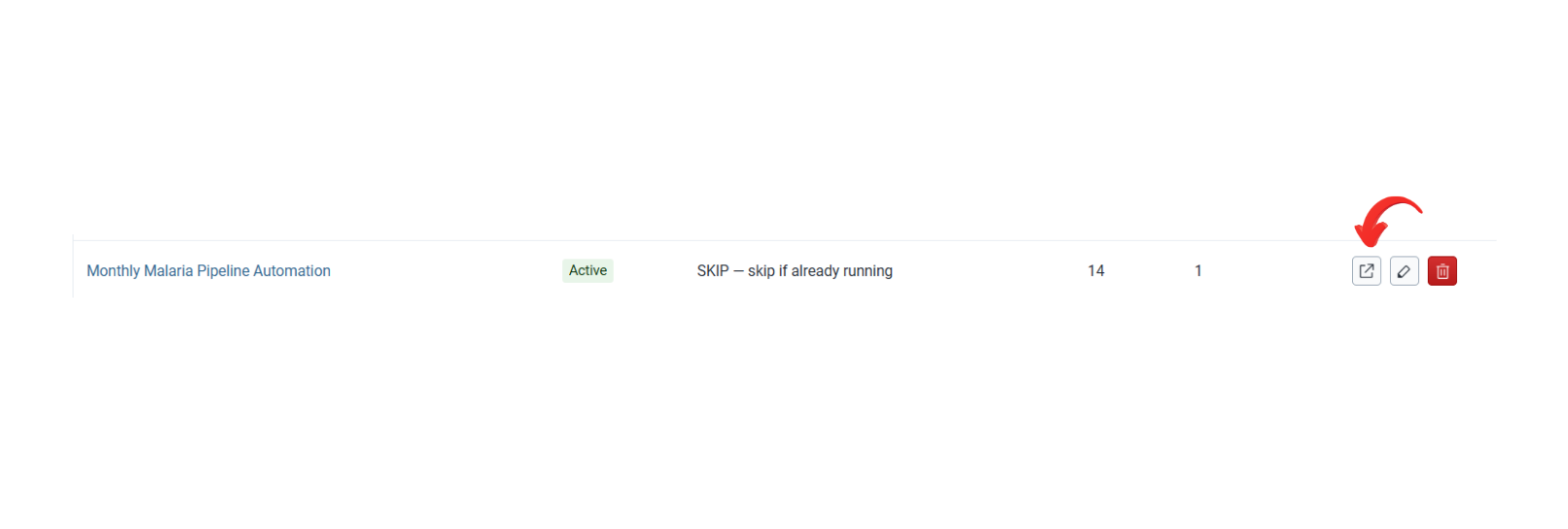
From the pipeline. Open the pipeline and click Trigger at the top right. The menu beside that button has two choices:
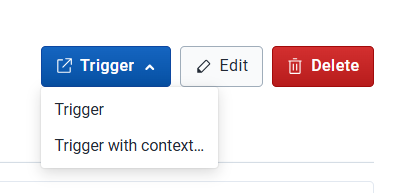
- Trigger uses the period and organisation unit settings saved on the steps.
- Trigger with context… opens a dialog that lists those settings. Change the period or organisation units for this run, or leave them. Click Trigger to start. This run uses the values in the dialog. The steps keep the settings they already had.
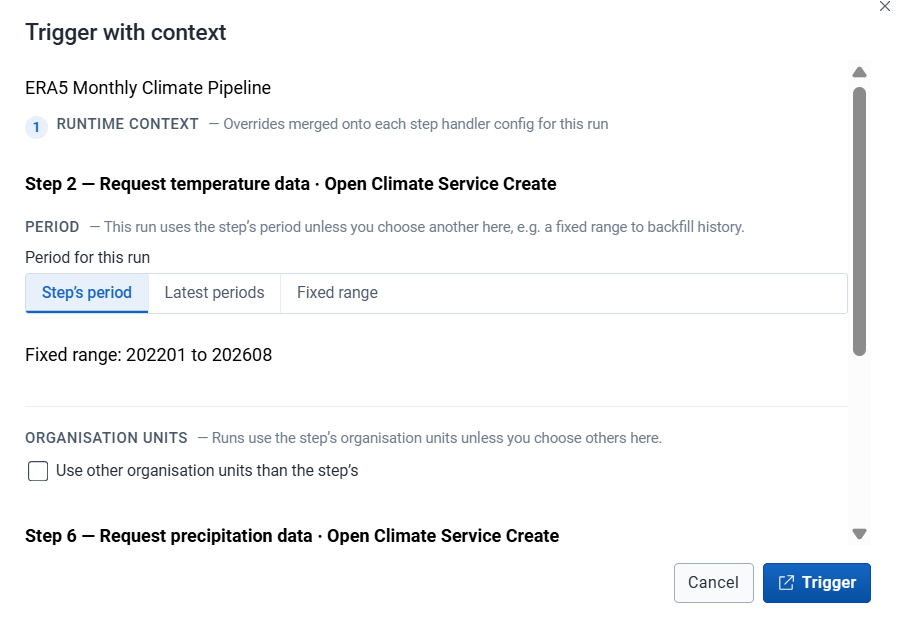
A scheduled run can apply its own overrides. That is Input context.
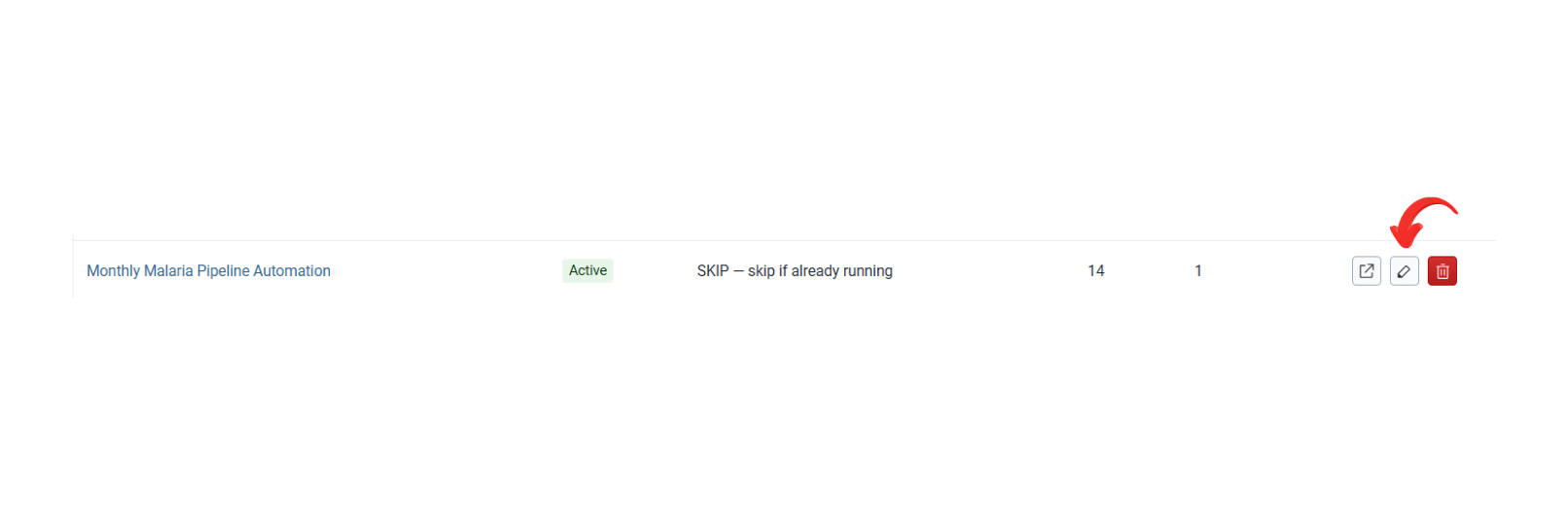
Pipeline details. From Pipelines, click Edit on the row. Change the fields and click Save Changes. Or open the pipeline, click Edit at the top right, and save.
One step. On Steps, click Edit on the row, change the step, and save it.
Delete
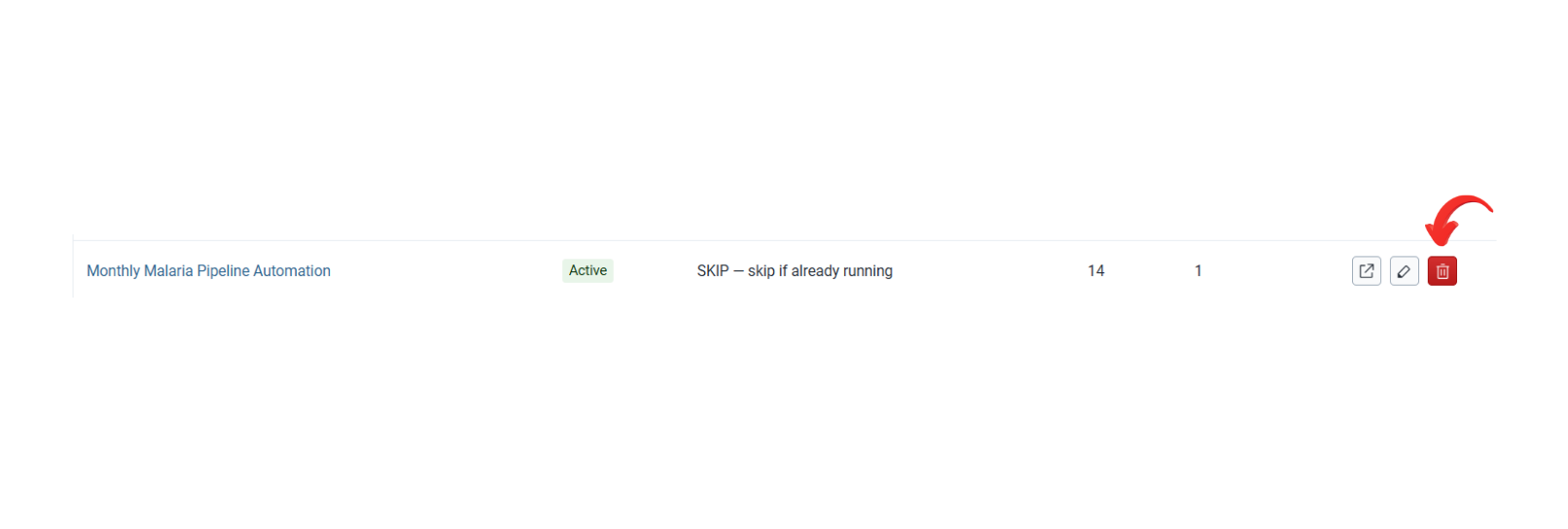
Section titled “Delete”The pipeline. From Pipelines, click Delete on the row, or open the pipeline and click Delete at the top right. The confirmation explains what is removed. Click Delete to remove the pipeline, or Cancel to keep it.
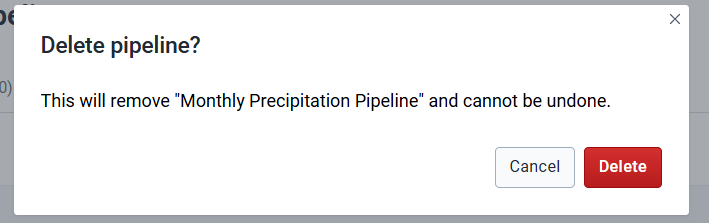
One step. On Steps, click Delete on the row. Confirm with Delete, or click Cancel to keep the step.
A triggered pipeline appears under Executions with status Pending or Running. An edit is visible when you reopen the pipeline. A deleted pipeline is gone from the list.
Read the execution to see which step the run has reached.